
Server Transfer
Server transfers are permanent. Once a transfer is completed, ownership cannot be reversed automatically.
What is a Server Transfer?
A server transfer moves ownership of a server and its associated resources to another Cleavr account. It's useful when handing off a server to a client, transferring ownership to a teammate with their own Cleavr account, or moving infrastructure between separate accounts.
During the transfer, certain account-specific resources are intentionally removed or recreated because they are tied to the original owner's account rather than the server itself.
What gets transferred
The following resources are transferred to the recipient:
- Server
- Sites
- Site redirects
- Site authentication settings
- SSL certificates
- Deployment workflows
- Process monitors
- Databases
- Database users
- Server users
- SSH keys
- Cron jobs
- Firewall rules
What gets reset or removed
Some resources are intentionally removed because they belong to your Cleavr account rather than the server itself:
- Version Control profiles - not transferred. Each deployment workflow has its repository configuration removed, so the recipient must connect their own VC profile and re-link the repository. Deployment history remains available.
- Backup jobs - permanently deleted, including schedules, history, and cron jobs. Any backup scripts on the server are also removed. However, existing backups already stored in the original owner's Backup Profile destination are not deleted - they remain with the original owner. The recipient must configure new jobs using their own Backup Profiles.
- Tags - all tags on the server, sites, and deployment workflows are removed.
- Team permissions - any Company or Team permissions are removed. The recipient becomes the sole owner.
- Deployment workflow notifications - default error and cancelled notifications are recreated using the recipient's default notification profile. If none is configured, notifications are not recreated.
VPS Provider Profile
The recipient receives the server under a Custom VPS Profile.
Requirements
Who can initiate a transfer
Server transfers can only be initiated by users who own the server. For users with business subscriptions, only the company owner (Administrator) can initiate transfers - company members cannot, even if they created the server.
Recipient requirements
Before a transfer can begin, the recipient must:
- have a Cleavr account
- have a verified email address
- have an active paid subscription (trials are not eligible)
- be below their server limit
- not be a company member
Eligibility is verified twice - when the transfer is initiated and again when the recipient accepts. If the recipient becomes ineligible before accepting, the transfer is rejected automatically.
Load Balancer Restrictions
Servers in a Load Balancer configuration cannot always be transferred. Transfers are blocked when:
- the server is being balanced by a load balancer
- the server has sites that are balanced by a load balancer
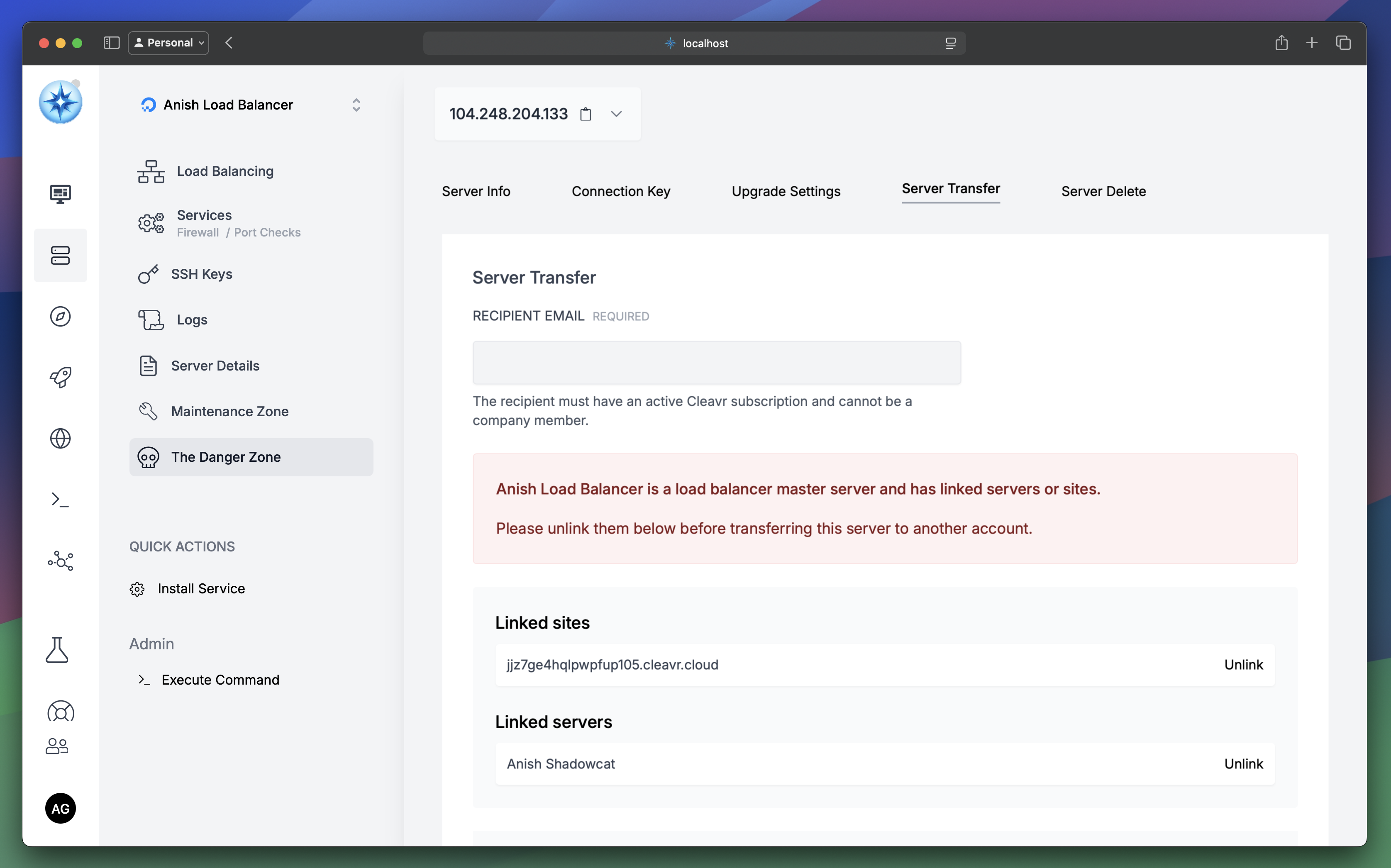
- the server is a load balancer master server and has linked servers or sites
These relationships must be removed before the transfer can proceed.
If a Load Balancer master no longer has any linked servers or sites, it can be transferred normally.
When opening the Server Transfer page, Cleavr displays any blocking Load Balancer relationships together with options to unlink the affected resources.
How Server Transfers Work
Step 1: Initiate the Transfer
- Navigate to the server > The Danger Zone
- Select Server Transfer
- Enter the recipient's email address.
- Review the transfer summary.
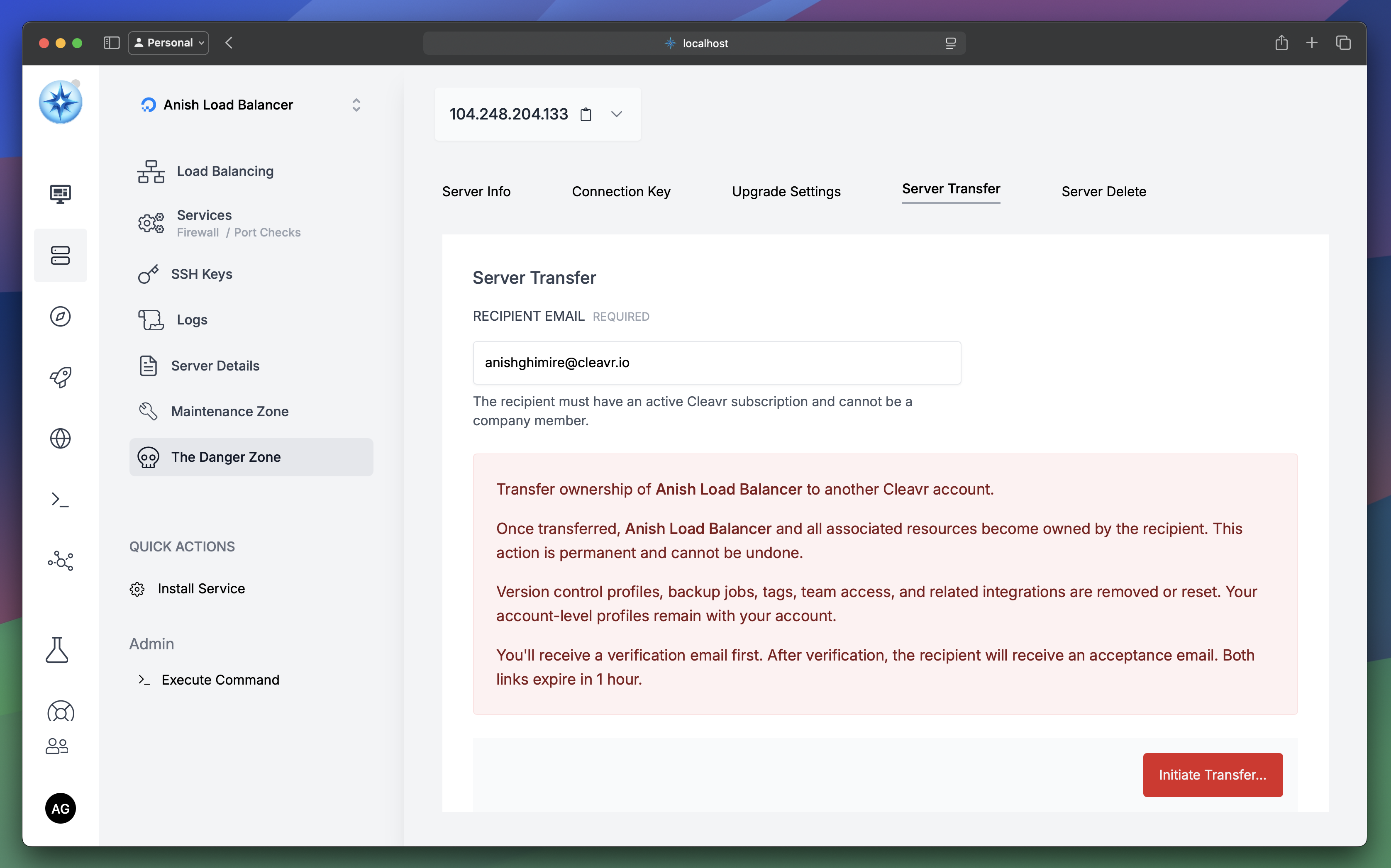
- Click Initiate Transfer.
- Confirm your password.
After submitting, Cleavr displays a notice to check your email to verify the request. No changes occur until the transfer has been verified.
Step 2: Verify the Transfer
A signed verification email is sent to the current owner. The link expires after 1 hour. Once verified, the transfer enters Pending Recipient Acceptance and an acceptance email is sent to the recipient.
Step 3: Recipient Acceptance
The recipient receives an email with a signed acceptance link that also expires after 1 hour. When accepted, ownership transfers immediately and the resources listed in What gets reset or removed are reassigned, removed, or recreated accordingly. A confirmation email is then sent to the original owner.
Both verification and acceptance links are cryptographically signed, expire after 1 hour, and can only be used once.
Cancelling a Transfer
Transfers may be cancelled at any time before the recipient accepts.
- Navigate to the server > The Danger Zone.
- Select Server Transfer
- Review the active transfer banner.
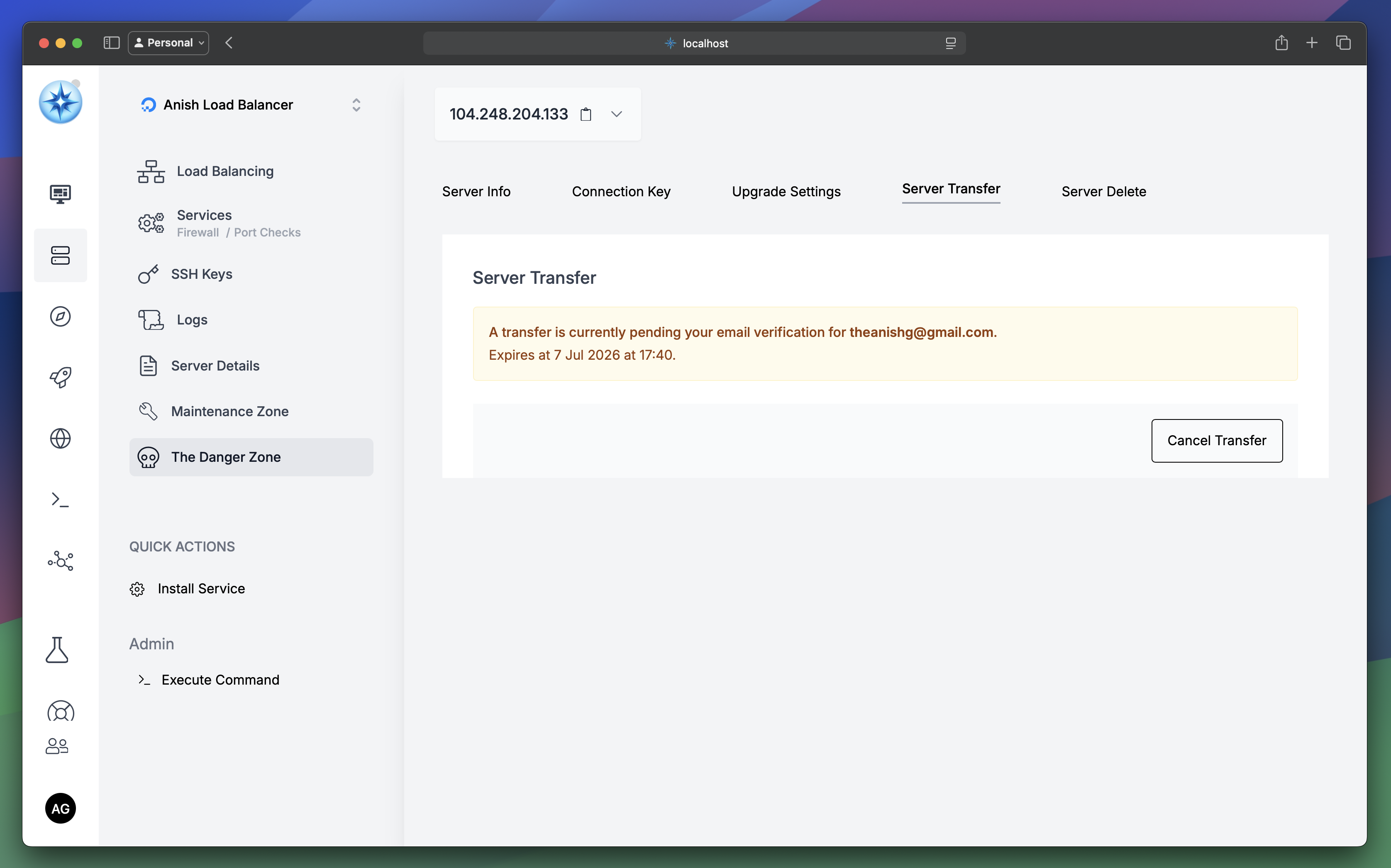
- Click Cancel Transfer.
Cancelling immediately invalidates any outstanding acceptance links. No server resources are modified.