
Server Connection Issues
If actions such as adding or deleting an SSL certificate, editing a site, or creating a new site return a 500 error or stay stuck in queue, the cause is almost always that Cleavr can no longer reach the server. The two most common reasons are an expired VPS profile access token or a lost SSH connection.
When a server is not in an active state, Cleavr restricts access to the server's pages. The fixes below can all be performed from the Server List page using the status popup.
Check the server status
From the Server List page, click the server's status label, then click Check Status to retrieve the latest status.
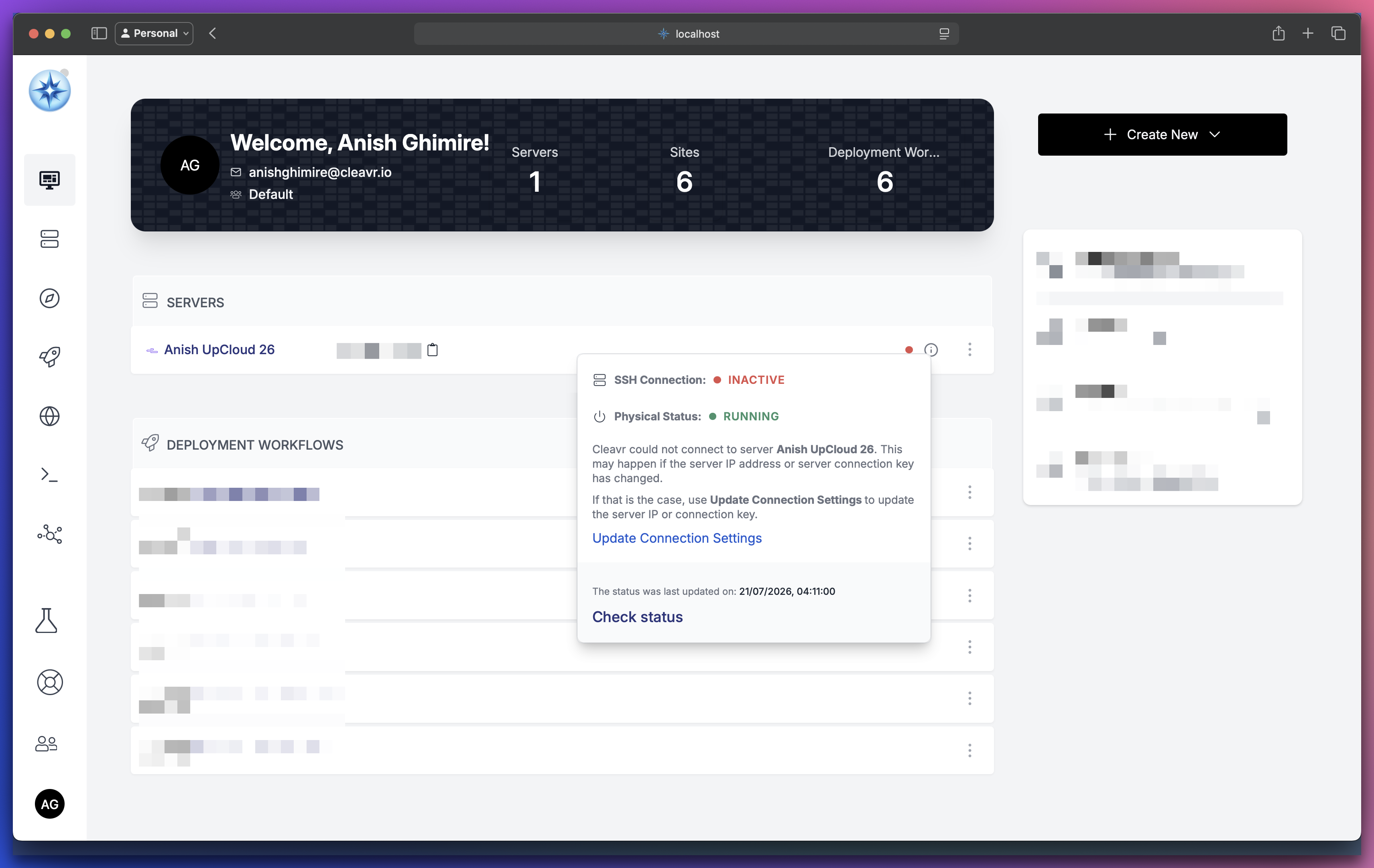
The status popup reports two values:
- SSH Connection - whether Cleavr can SSH into the server
- Physical Status - whether the server's VPS provider reports the server as active
SSH Connection is Inactive
Cleavr can no longer SSH into the server. This typically happens after a server reboot, a resize, or when the VPS provider rotates SSH keys.
To restore the connection from the status popup:
- Click the server's status label on the Server List page
- Click Check Status
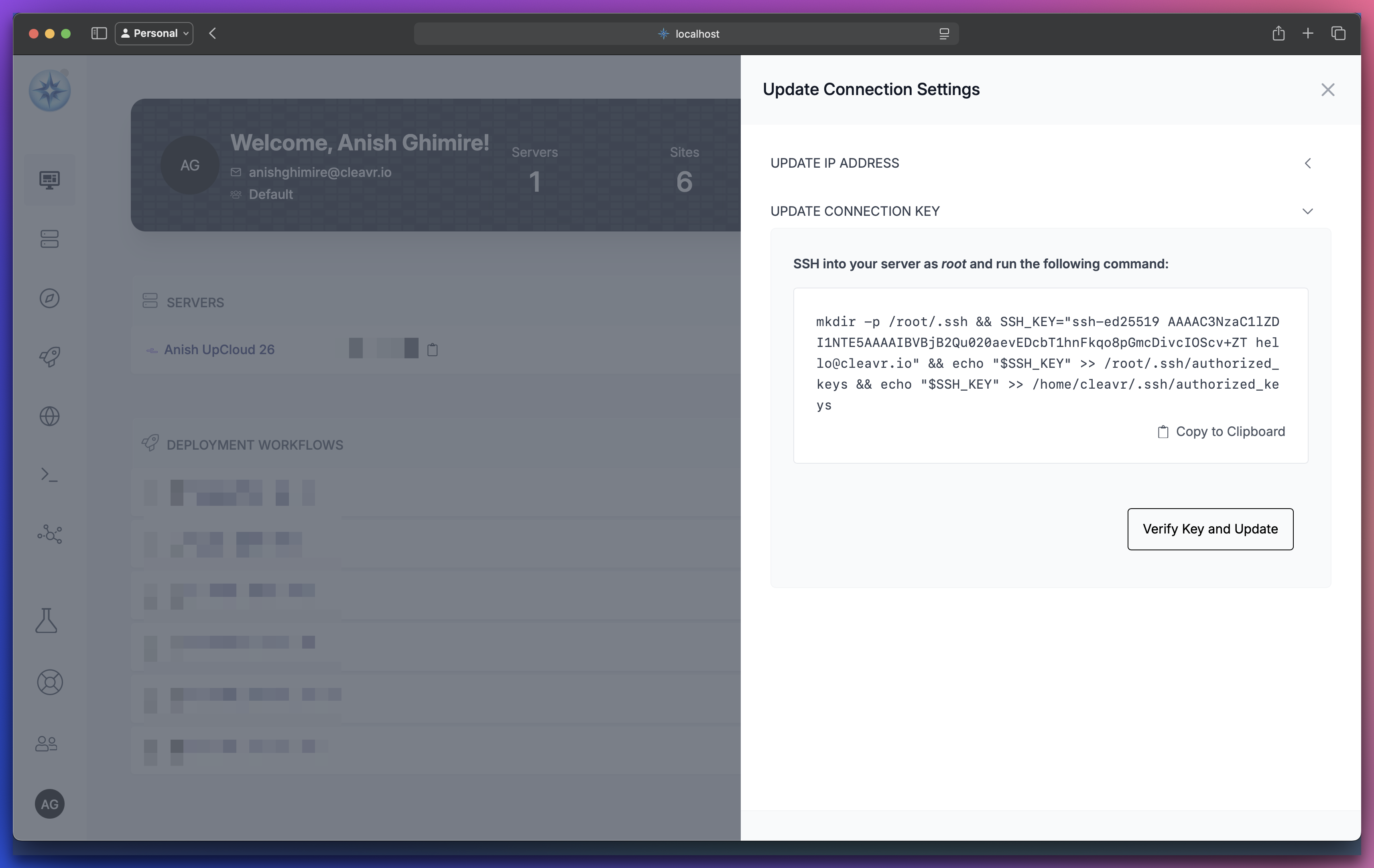
- Open Update Connection Settings and select Update Connection Key
- Copy the command shown in the slideout
- SSH into the server and run the command
- Back in Cleavr, click Verify Key and Update
If you have not added your SSH key to the server, most VPS providers let you run commands from their server console.
If the server's pages are still accessible, you can also update the connection key from the server's Danger Zone. See the change connection key guide for those steps.
IP Address Changed
If the server was resized or moved and its public IP changed, Cleavr will not be able to reach it at the old address.
To update the IP from the status popup:
- Click the server's status label on the Server List page
- Click Check Status
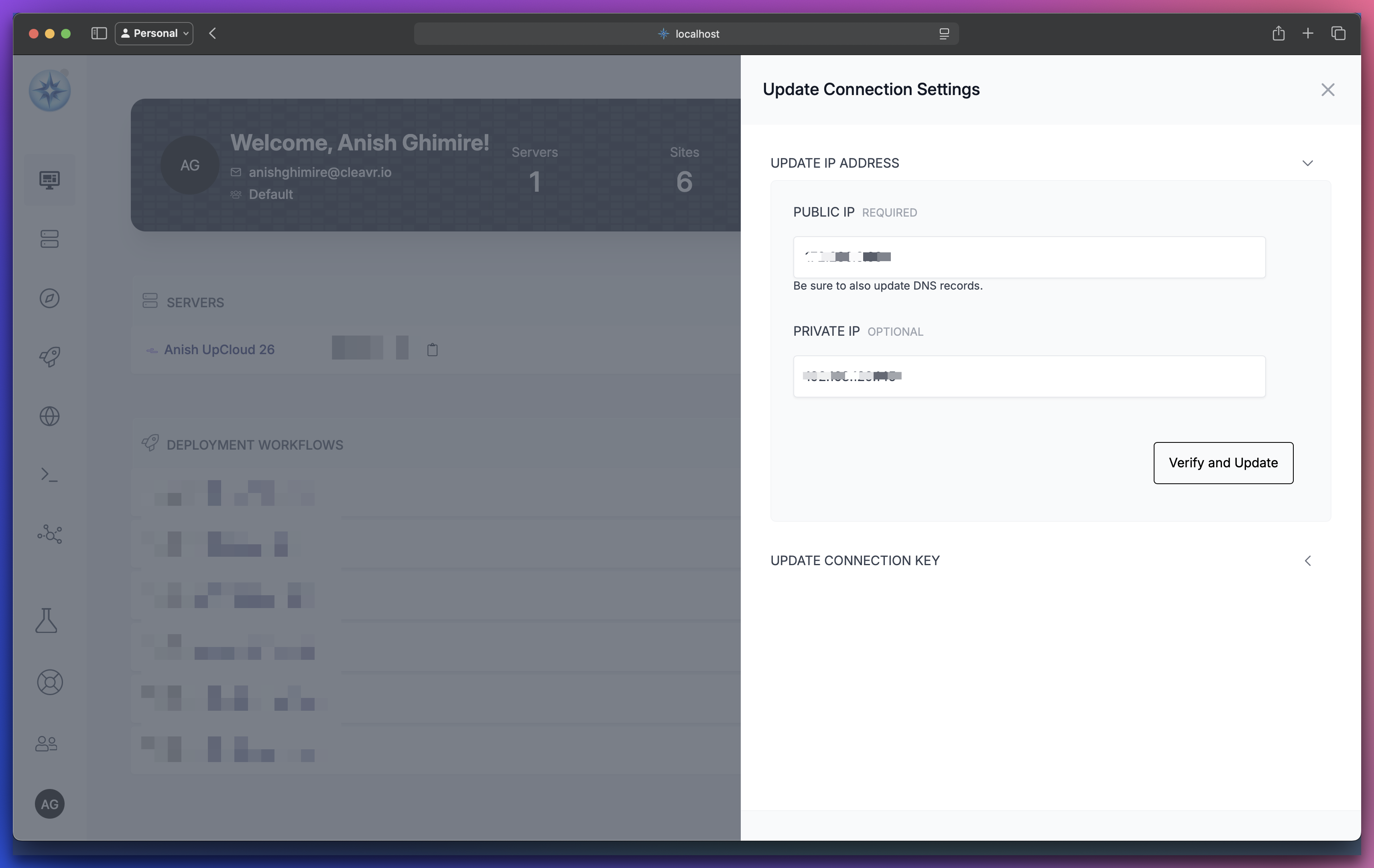
- Open Update Connection Settings and select Update IP
- Enter the server's new public IP and save
Physical Status is Invalid Key
The VPS profile access token used to communicate with the VPS provider has expired. The server is usually still running, but Cleavr can no longer confirm its status with the provider.
To resolve, generate a new access token with your VPS provider and update the corresponding VPS profile:
- Navigate to Connections > VPS Profiles
- Click the ellipsis menu for the profile and select Edit Profile
- Paste the new access token and save
See VPS Profiles for where to locate the token for each provider.
Physical Status is Invalid
The VPS provider is reporting the server as inactive. This usually means the server has been stopped, resized, or deleted on the provider side, or that the access token has expired and the provider can no longer be queried.
To confirm:
- Check whether the sites hosted on the server are still accessible
- Review the server's status directly with your VPS provider
If the server is running normally, the most likely cause is an expired VPS profile access token. Follow the steps in Physical Status is Invalid Key to update the token.
After resolving
Return to the Server List page, click the server's status label, and click Check Status to refresh the reported values. Once both SSH Connection and Physical Status report as OK, the server's pages become accessible again and you can retry the action that was previously failing.
If the issue persists, reach out to the community on the forum or submit an issue from your account section (online help desk available for Pro subscribers).